
1. Requirements
GastroFox runs on almost any standard web hosting with Plesk or cPanel. Minimum requirements:
| PHP | 8.2 or newer (8.3 recommended) |
|---|---|
| PHP extensions | pdo_mysql, mbstring, openssl, curl, zip, gd, fileinfo, sodium, xml, ctype, tokenizer, bcmath |
| Database | MySQL 5.7+ or MariaDB 10.3+ (one empty database with a user) |
| Disk space | at least 1 GB free (software approx. 150 MB, the rest for images and backups) |
| PHP settings | memory_limit 256M, max_execution_time 300, upload_max_filesize 20M |
| SSL | HTTPS certificate (e.g. free via Let's Encrypt) – required for online payments |
| Cron job (recommended) | * * * * * php /path/to/gastrofox/artisan schedule:run |
public folder. If that is not possible, GastroFox redirects there automatically.2. Purchase & licence
- After purchase you will find your licence key and the download in the customer area.
- The licence is valid for one domain and is linked to your domain automatically during installation.
- Test installations on localhost, *.test or *.local are allowed in addition.
- Change domain: customer area → licence → “Change domain”.
- Updates are included for 12 months. Afterwards your shop keeps running unchanged – you can renew updates in the customer area.
3. Installation
- Download: download the ZIP in the customer area.
- Upload: upload the ZIP to your domain folder in the Plesk or cPanel file manager and extract it there.
- Create a database: create a new MySQL database with a user and password in your hosting panel.
- Start the wizard: open your domain in the browser – the installation wizard starts automatically.
- Licence: enter your licence key.
- Database: enter the credentials (host is usually
localhost). - Admin account: choose your name, email and password.
- Restaurant: choose language, currency, restaurant name and one of the 5 included designs – done.
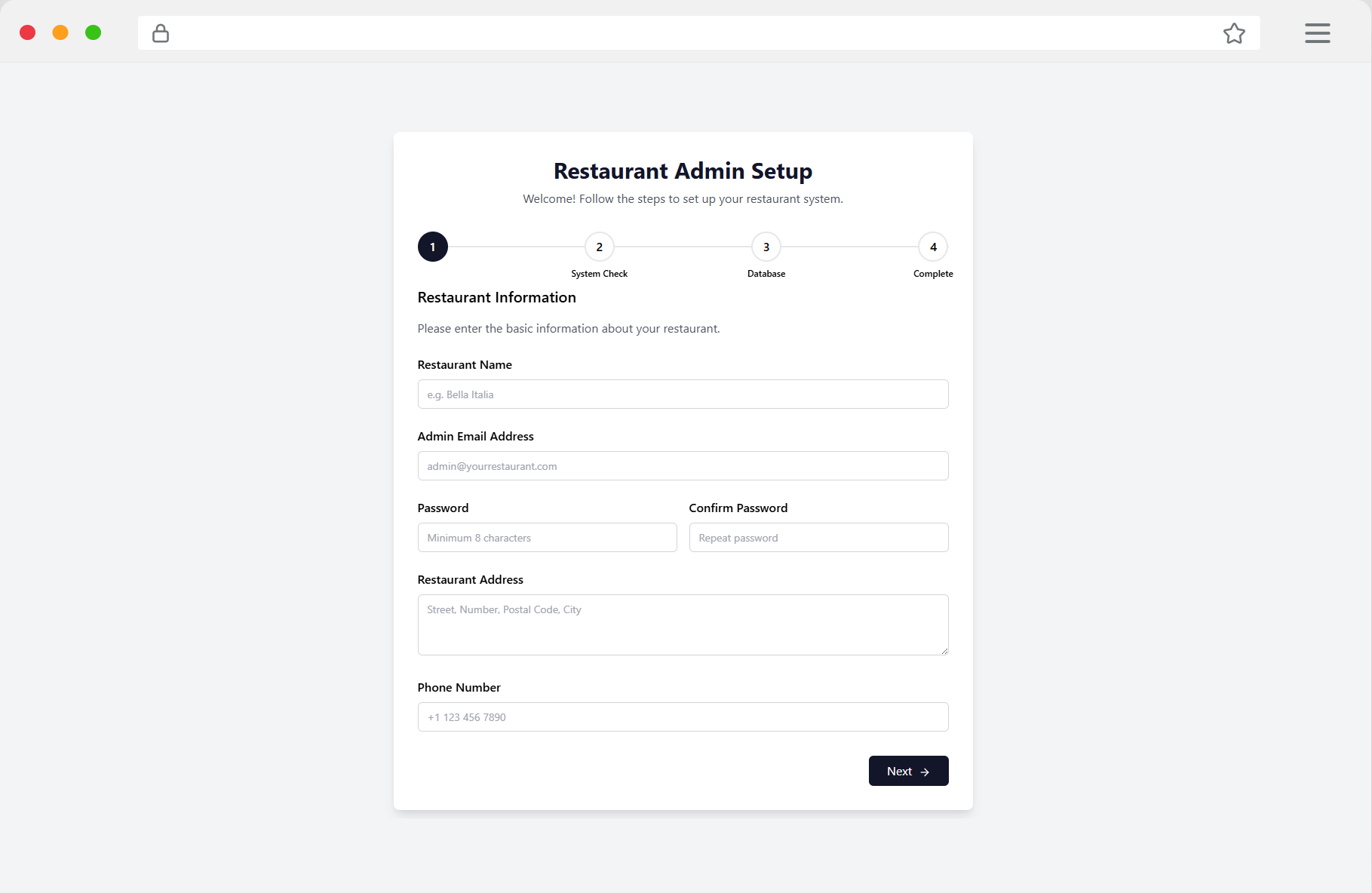
Afterwards you log in at your-domain.com/admin-login.
4. First steps
After installation the dashboard shows a getting-started list. Work through it once from top to bottom:
- Upload your logo and restaurant name (Website → Header)
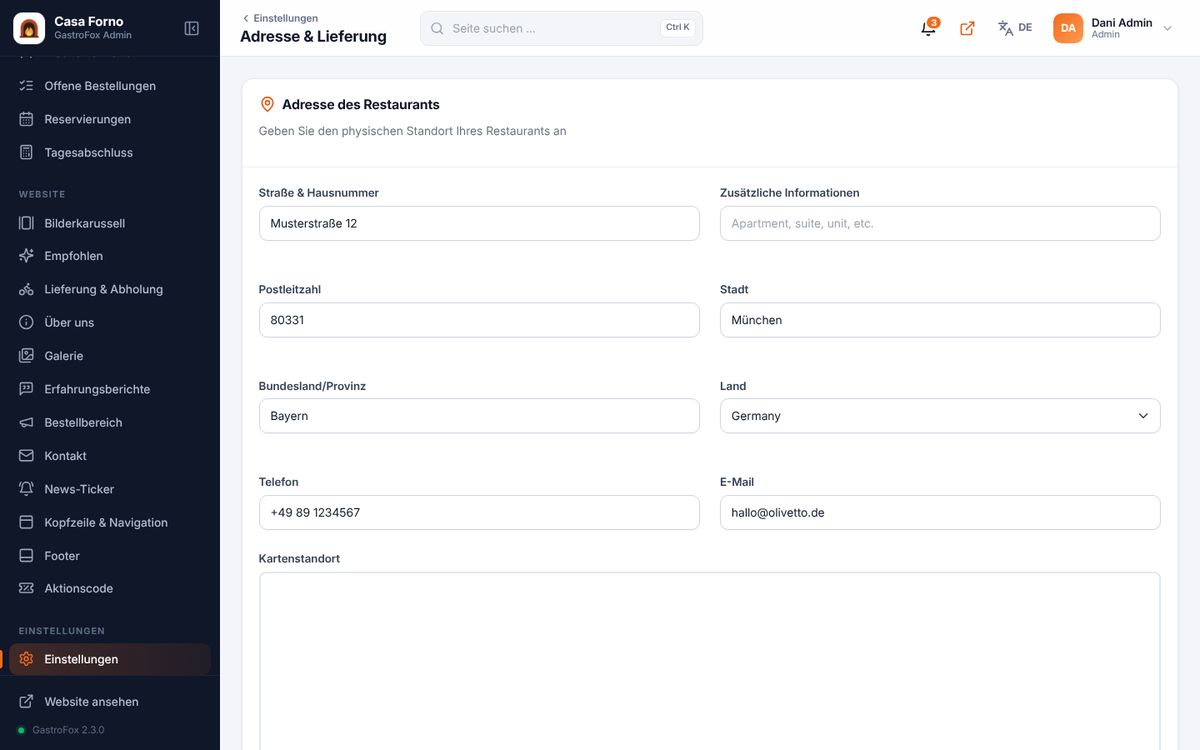
- Enter address, phone and email (Settings → Address & delivery)
- Set opening hours and delivery areas
- Create your menu – manually or with the AI import
- Activate payment methods and set up email sending (SMTP)
- Add imprint and privacy policy (Settings → System)
Simply overwrite the demo content (images, texts, dishes).
5. Dashboard
The dashboard shows everything important at a glance:
- New orders – handle them directly with “Accept” or ✕
- Key figures – orders, revenue, average order value and new customers with trends
- Charts – revenue and orders by day or month
- Order availability – pause delivery or pickup with a switch
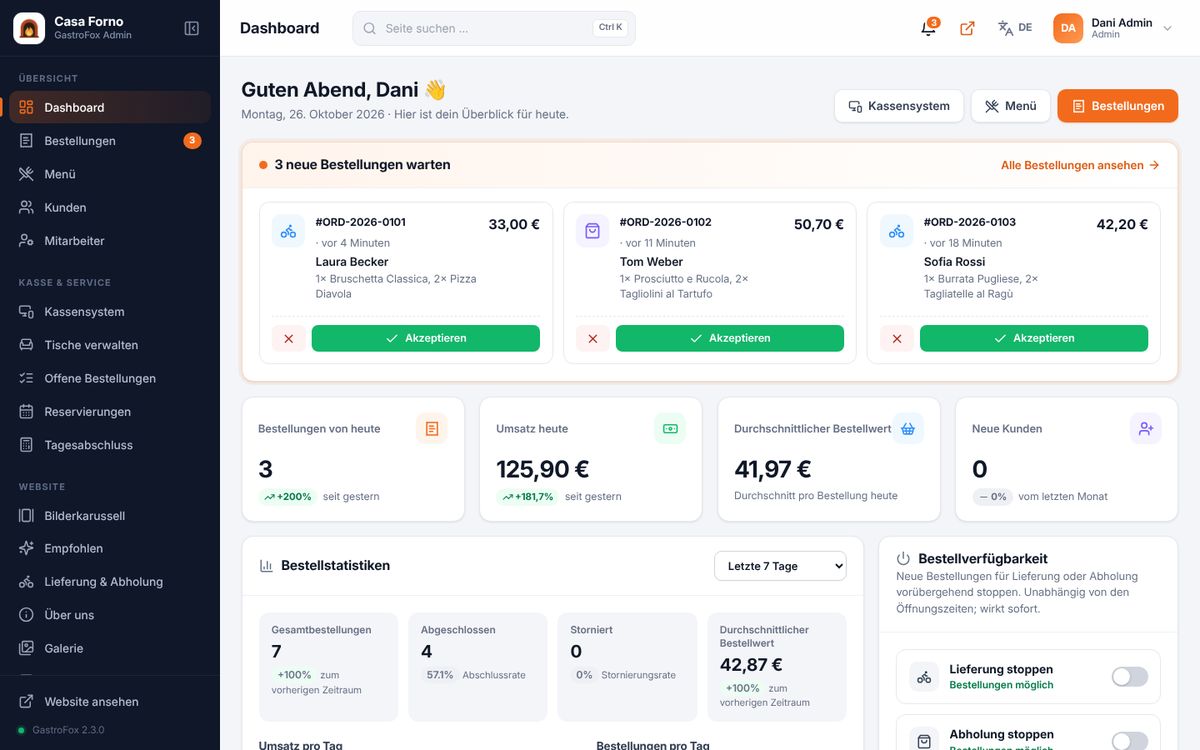
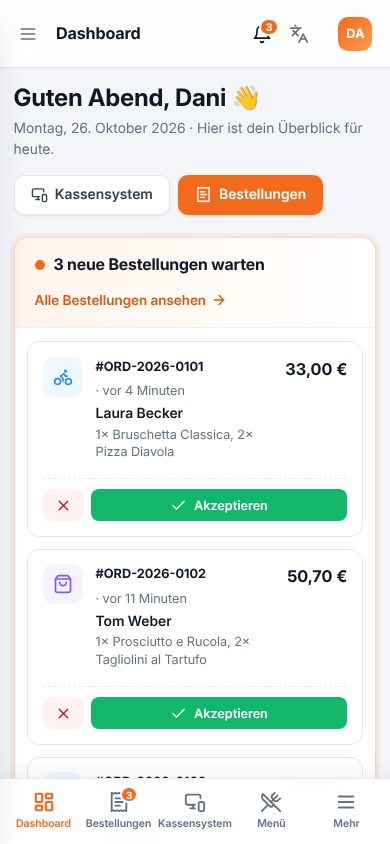
Navigation: the sidebar on the left (collapsible) and the quick search at the top (Ctrl + K) – type e.g. “opening hours” and press Enter. The bell shows new orders.
On your phone a bar at the bottom gives you dashboard, orders, POS and menu.
6. Orders
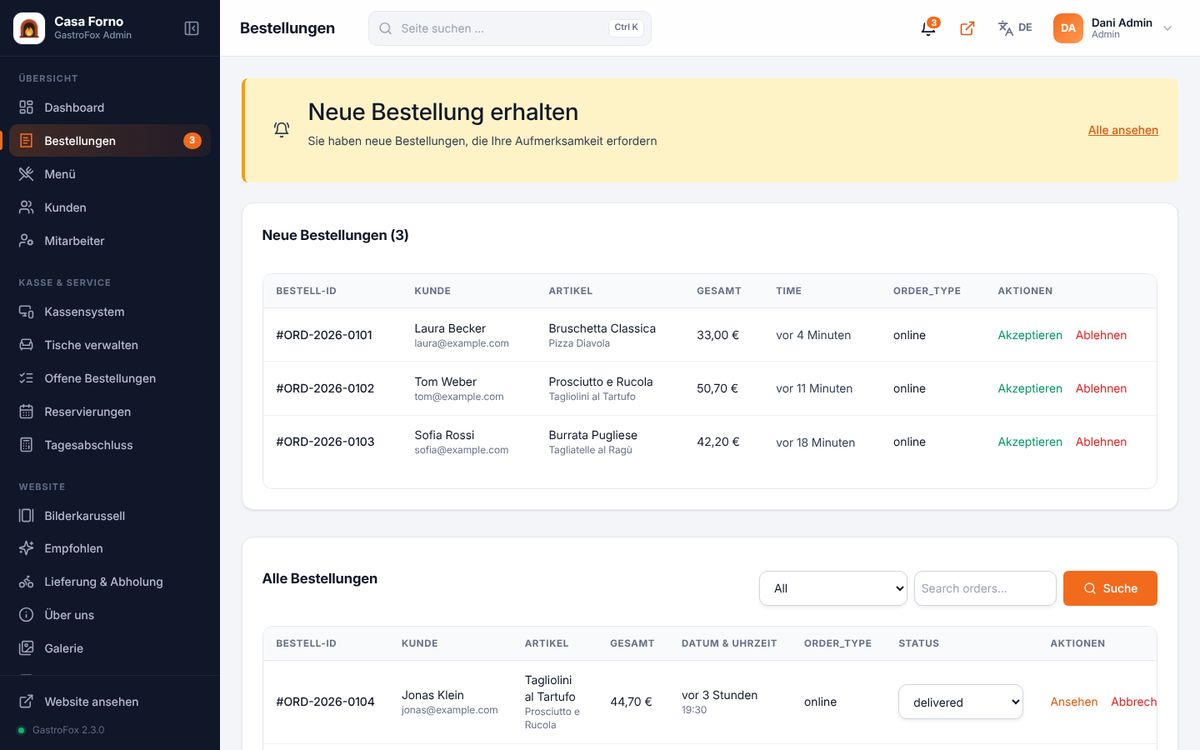
- New online orders appear at the top under New orders (with a sound).
- Accept → the guest receives a confirmation email.
- Change the status: Preparing → Ready → Delivered. The guest sees it on their order page.
- Search and filter under All orders.
7. Menu
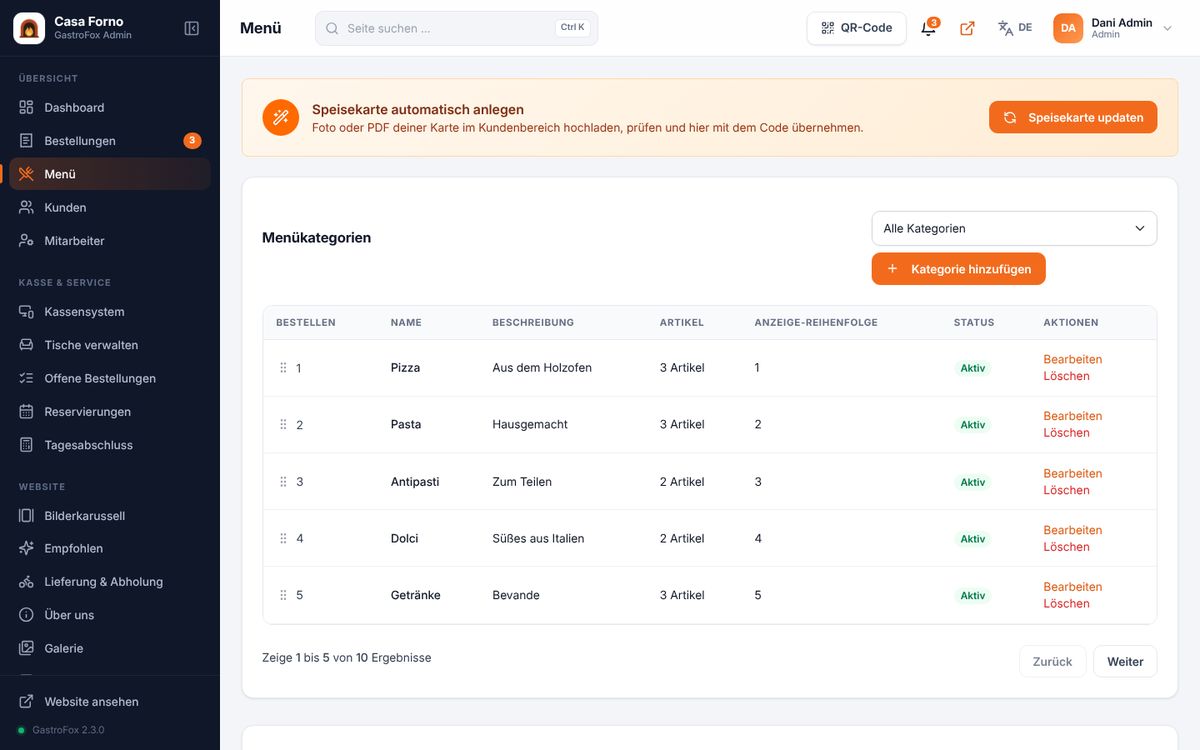
- Add a category: Menu → “Add category”. Drag to change the order.
- Add a dish: Menu → “Add item” – image, name, description, price, category and VAT rate.
- Sizes: enable “Sizes” and enter prices for small, medium and large.
- Extras / toppings: create them under “Product toppings” and assign them to dishes.
- Bestsellers: marked dishes appear on the home page under “Highlights”.
- QR code: “QR code” at the top right – for table stands or flyers.
8. Import your menu with AI
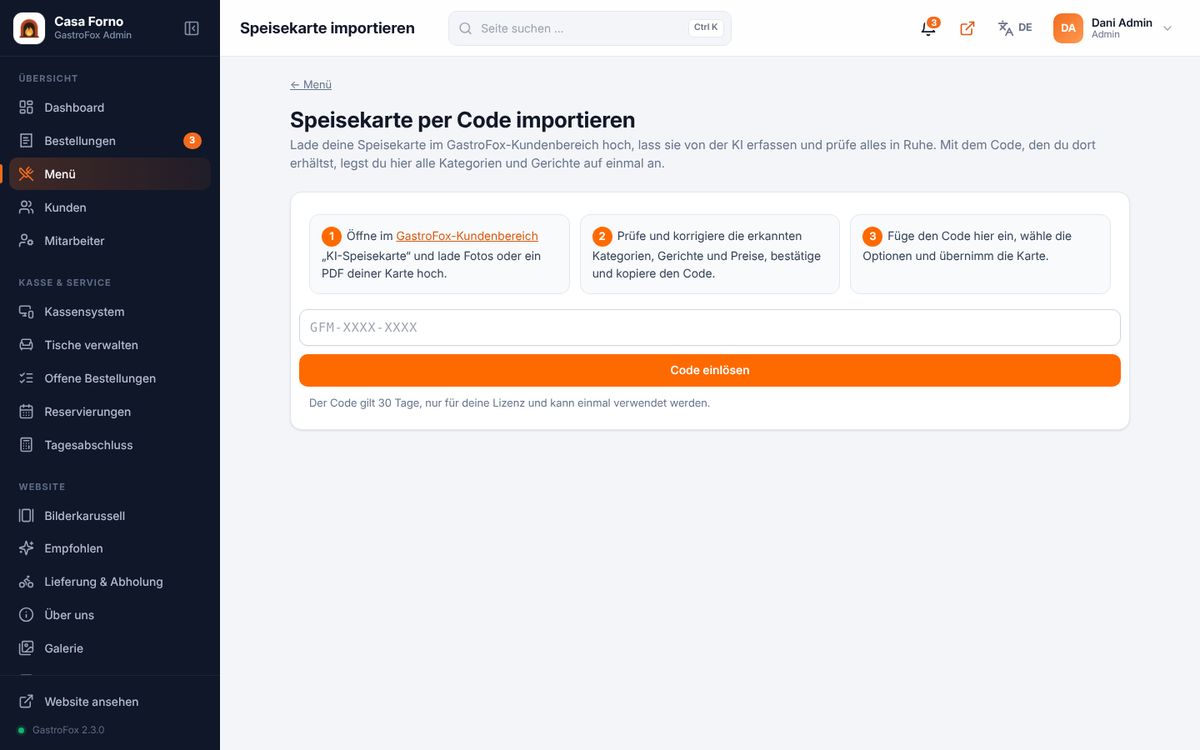
- In the customer area → “AI menu”, upload photos or a PDF of your menu.
- The AI detects categories, dishes, sizes and prices. Check, correct (also via chat) and confirm.
- You receive a code (valid for 30 days, single use).
- In the admin: Menu → “Update menu” → enter the code → check the preview.
- Choose Add (existing dishes stay) or Replace and import.
9. POS, tables & reservations
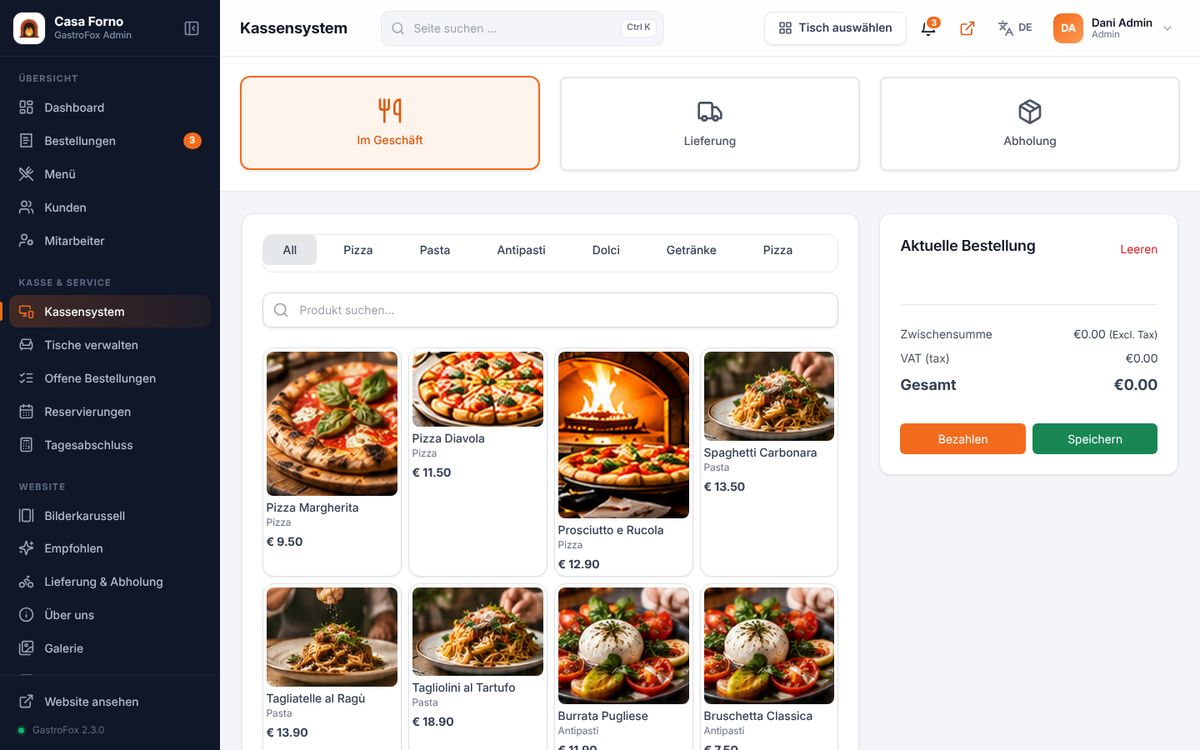
- POS: choose in-store, delivery or pickup, tap dishes, “Pay”.
- Tables & QR: create tables with area and seats. Clicking a table opens its QR code (download, print template, regenerate), link, status (occupied, reserved, unavailable) and notes.
- Open orders: all running table and POS orders.
- Reservations: calendar or list view, add one with “+ New reservation”.
- End of day: the day's revenue by hour, category and payment method – save it as a report.
10. Website content
Everything under Website in the sidebar changes your restaurant's home page:
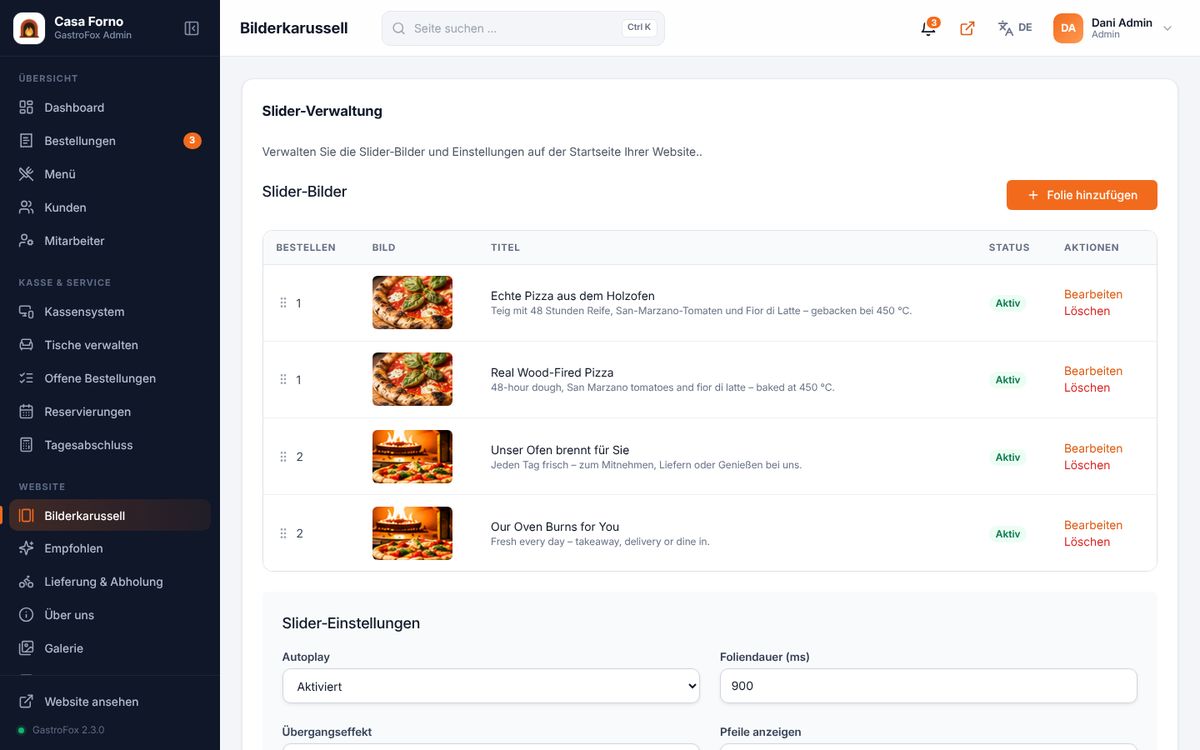
- Slider: large hero image with title and text
- Featured: the three benefits below the hero
- Delivery & pickup, About us, Gallery, Testimonials: texts and images of those sections
- Order section: offer banner (a price in the title is shown as a sticker automatically)
- Contact: contact form and map
- News ticker: the scrolling line at the very top
- Header & navigation / Footer: logo, menu items, social media, footer
- Promo code: discount codes (percent or amount, validity, minimum order)
11. Design & appearance
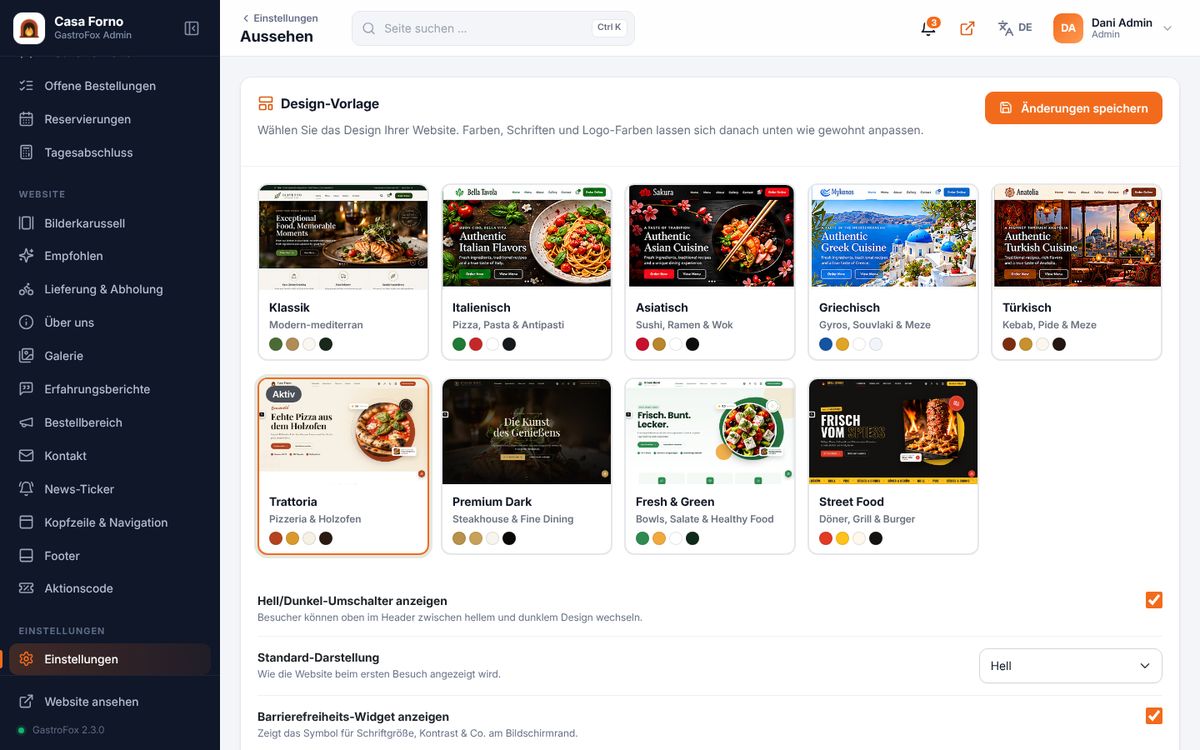
- Settings → Appearance → choose a design template: 5 designs are included, premium designs (€79 each) can be tried free for 30 days. Without a purchase the site switches back to an included design after the trial.
- “Apply template colours” sets matching colours, fonts and logo colours. Everything stays editable afterwards.
- Below: main colours, fonts, corner radius, container width.
- Optional: light/dark switch for guests and – with the accessibility plugin – the accessibility tool.
- “Save changes”.
12. Settings
Under Settings you find all areas as tiles:
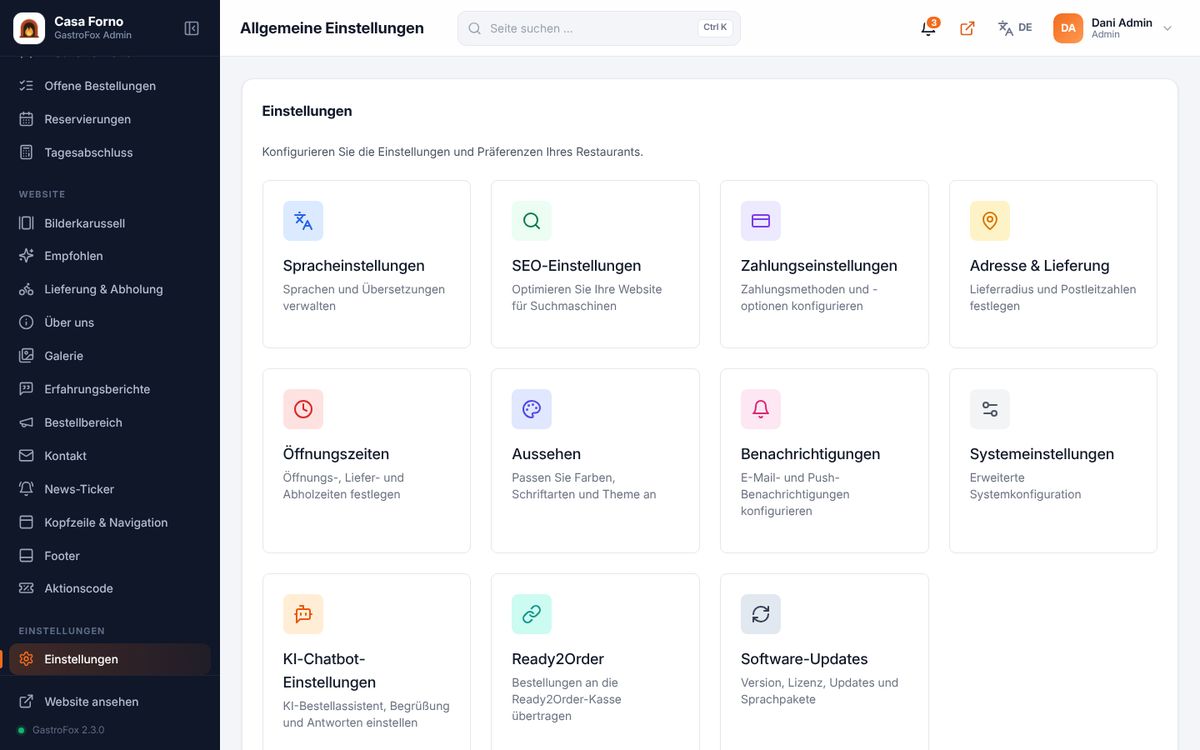
| Opening hours | Open/closed per day, times and break. No orders are possible outside opening hours. |
|---|---|
| Address & delivery | Restaurant address, delivery areas by postcode with delivery fee and minimum order, pickup discount. |
| Payment | Activate payment methods (cash, PayPal, Stripe …) and enter credentials. Plus currency and tax rates. |
| Notifications | Email sending (SMTP details from your host), sender, which emails guests and you receive. |
| Languages | Switch languages on/off, default language, translate texts. |
| SEO | Page title, description, social media preview image, Google Analytics. |
| System | Imprint, privacy policy, cookie notice, maintenance mode. |
| Staff & permissions | Create staff accounts. Pick a template (manager, service, kitchen, driver) and adjust each permission – e.g. only view orders or only take payments. License, plugins and user management stay with the owner. |
13. AI ordering chat
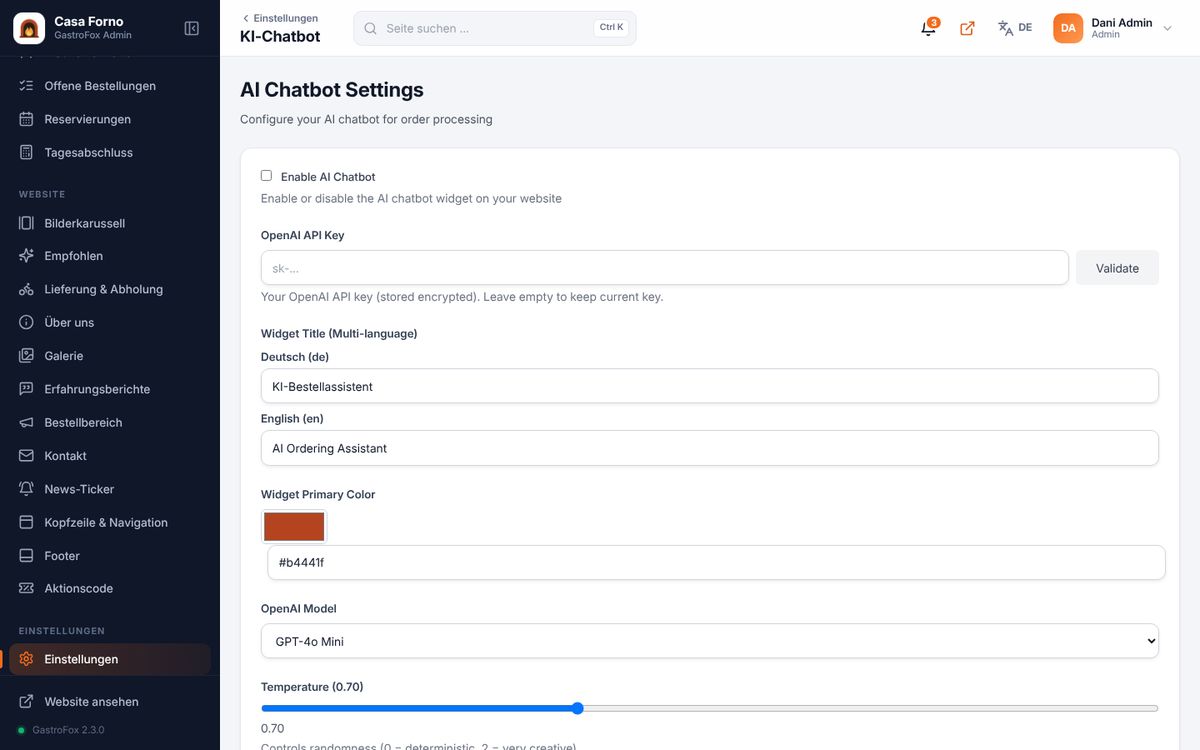
- Settings → AI chatbot → “Enable”.
- Enter and validate your OpenAI API key (get it at platform.openai.com).
- Choose a model – recommended: gpt-5.4-mini (fast and cheap, a few cents per conversation).
- Adjust title, greeting and colour, save.
The chat replies in the guest's language, shows dishes with images, fills the cart and places the order – it appears under Orders as usual.
14. Plugins & premium designs
Under Settings → Software updates → Plugins & designs you see all extensions with price and status:
- Buy: click “Buy” – for AI chat, accessibility and POS you confirm the notice first. You pay via Stripe and are taken back automatically; the plugin is installed right away.
- Try premium designs: “Try for 30 days” installs and activates the design. You get a reminder shortly before it ends; without a purchase the site switches back to an included design.
- Updates: new plugin versions appear in the same place (“Update”) – during your update period.
- Invoices: every payment automatically creates an invoice (PDF by email and in the customer area).
You can order a custom design in the customer area with the support ticket “Request a custom design”.
15. Receipt printer
With the receipt printer plugin new orders are printed automatically.
- Set up the printer on your PC (USB, Bluetooth or Wi-Fi) and make it the default printer in Windows/macOS.
- Admin → Printer → choose paper width (58 or 80 mm), copies and content → save.
- Switch on “Use this browser as print station” and make a test print.
- For printing without a dialog: start Chrome with
--kiosk-printing(instructions on the printer page).
As long as the admin is open on the print station, every new order is printed immediately. Single receipts can be printed any time via “Print receipt”.
16. Ready2Order
Settings → Ready2Order: enter the API key of your ready2order POS and enable it. Online orders are then sent to the POS automatically.
17. Updates, languages & backups
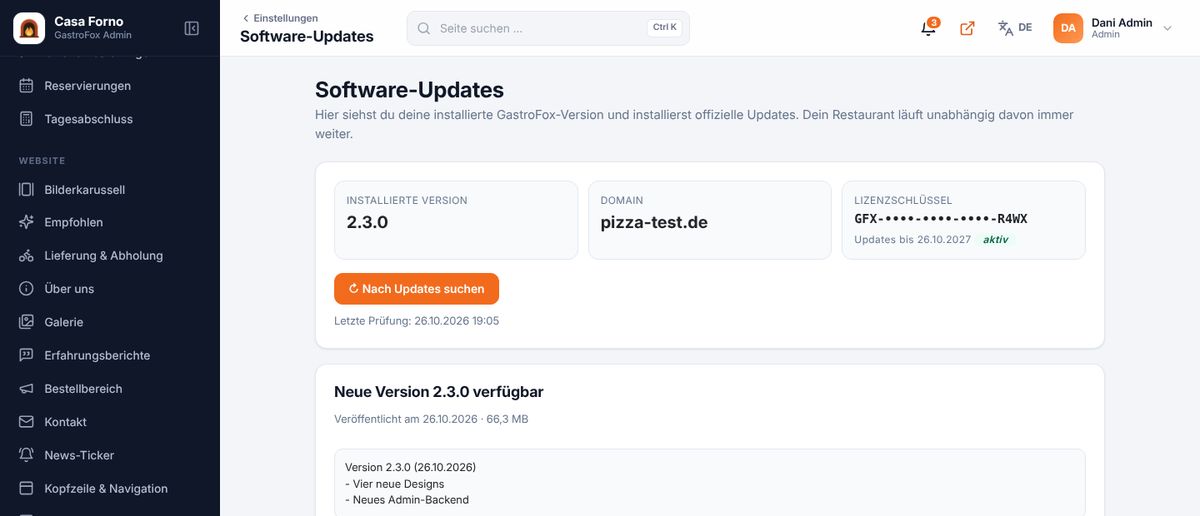
- Settings → Software updates → “Check for updates”.
- If a new version is available: read the changes → “Install update”.
- Everything is backed up automatically first (files + database). If something fails, the previous version is restored.
- Under Languages you install additional language packs (e.g. French, Italian, Spanish, Turkish) with one click.
- After 12 months you can extend update access in the customer area for €49 per year – your installation keeps running without renewal too.
18. Troubleshooting
| White page / error 500 | Check the PHP version (min. 8.2) and that all extensions are active. The folders storage and bootstrap/cache must be writable. |
|---|---|
| Licence not recognised | Check the domain in the customer area (with or without www is the same). After moving: “Change domain”. |
| Emails do not arrive | Check the SMTP details under Notifications; the sender address must belong to your domain. Check the spam folder. |
| Orders not possible | Check opening hours, delivery areas and “Order availability” on the dashboard. At least one payment method must be active. |
| Images do not upload | Increase upload_max_filesize in your hosting (e.g. 20M). |
| Update stops | The previous version stays active. Try again or open a support ticket. |
No results. Try another word or open a support ticket.
Нужна помощь?
Откройте тикет поддержки в личном кабинете или напишите нам в WhatsApp.